Is This APK Safe? 10 Checks Before You Install Any App Outside Google Play (2026)
Is this APK safe? It’s the right question to ask before you install any app from outside the Google Play Store. Many Android users download APK files from websites, Telegram groups or WhatsApp forwards. Some are harmless. Others are built to steal OTPs, flood your phone with ads or empty your bank account. Google says it has found over 90 times more malware from sideloaded sources than on Google Play. This guide gives you a simple 10-point checklist anyone can follow. Just want to watch films without risky apps? See how to download movies offline legally.
Check the source: use the Play Store or the developer’s official website first.
Check the file: scan it on VirusTotal and keep Play Protect turned on.
Check the permissions: SMS, Accessibility or notification access in a non-messaging app is a red flag.
When in doubt, don’t install.
Quick Checklist: Is Your APK Safe?
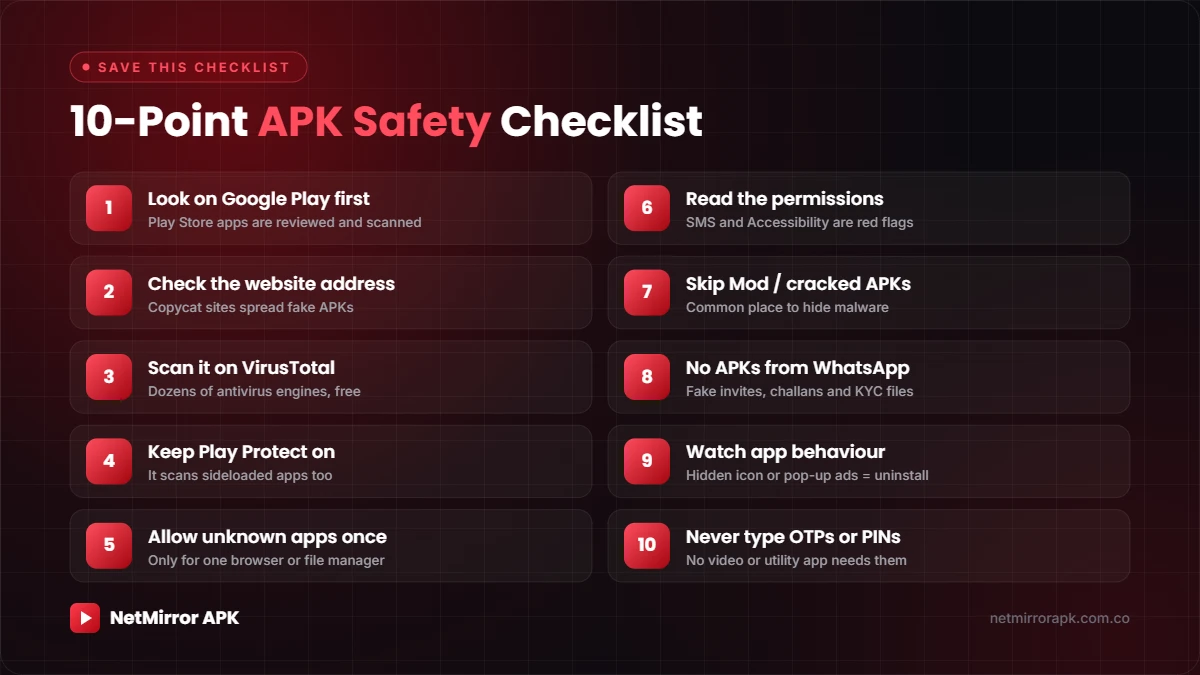
Run through these ten checks before you tap Install. It takes about two minutes and protects you from the most common scams.
| # | Check | Why it matters |
|---|---|---|
| 1 | Look for the app on Google Play first | Play Store apps are reviewed and scanned |
| 2 | Check the website address | Copycat sites spread fake APKs |
| 3 | Scan the file on VirusTotal | Dozens of antivirus engines check it for free |
| 4 | Keep Play Protect turned on | It scans apps from outside the Play Store too |
| 5 | Allow “unknown apps” for one app only | Stops silent installs from other apps |
| 6 | Read the permissions | SMS and Accessibility access are big red flags |
| 7 | Skip “Mod” and “Premium Unlocked” APKs | A common way to hide malware |
| 8 | Never install APKs sent on WhatsApp or SMS | Fake invites, challans and KYC files are scams |
| 9 | Watch how the app behaves after install | Hidden icons and pop-up ads are warning signs |
| 10 | Never type OTPs, PINs or card details | No genuine video or utility app needs them |
Check Where the APK Comes From
1. Look for the app on Google Play first
If an app is available on the Play Store, install it from there. Play Store apps go through review and automatic scanning, and they update themselves. Downloading the same app as an APK from a random website gives you no extra benefit and adds risk.
If the app is not on the Play Store, ask yourself why. Many apps are missing because they broke Google’s rules on security, privacy or copyright.
2. Check the website address carefully
Popular apps attract dozens of lookalike websites. Before you download, check:
- Is this the developer’s official website, or a site that just copies the app’s name?
- Does the page have several big “Download” buttons? Often only one is real and the rest are ads.
- Does the download start from a different domain than the one you visited?
- Are you sent through many redirects or pop-ups before the file appears?
If anything feels off, close the page.
Scan the File and Protect Your Phone
3. Scan the APK on VirusTotal before opening it
VirusTotal is a free service that checks a file with dozens of antivirus engines at once. Open it in your phone’s browser, tap Choose file and select the APK from your Downloads folder. Don’t install the file while you wait.
| Result | What it means | What to do |
|---|---|---|
| 0 detections | A good sign, but not a guarantee | Keep going through the other checks |
| 1–2 detections | Could be a false alarm | Read what was flagged (adware, trojan, etc.) |
| Many detections | Very likely harmful | Delete the file. Don’t install it. |
4. Keep Google Play Protect turned on
Play Protect scans the apps on your phone, including apps installed from outside the Play Store. Google explains how it works on its Google Play Protect help page. To check it’s on:
- Open the Play Store: tap your profile picture in the top right.
- Open Play Protect: tap Play Protect, then the Settings (gear) icon.
- Turn on scanning: make sure Scan apps with Play Protect is switched on.
In India, Google has also added extra fraud protection. When you install an app from a browser, messaging app or file manager, Play Protect can block it automatically if it asks for SMS access, notification access or Accessibility. Those are the permissions scammers use to read your OTPs.
5. Allow “Install unknown apps” for one app only
Android asks for this permission app by app. Give it only to the browser or file manager you are using, and switch it off afterwards. Go to Settings > Apps > Special app access > Install unknown apps. Menu names vary by phone brand, so search for “unknown apps” in Settings if you can’t find it. Make sure WhatsApp, Telegram and other chat apps are set to Not allowed.
Red-Flag Permissions to Watch For
6. Do the permissions make sense?
A movie player needs storage and internet. It does not need your SMS messages. Compare what the app asks for with what it actually does:
| Permission | Red flag when… |
|---|---|
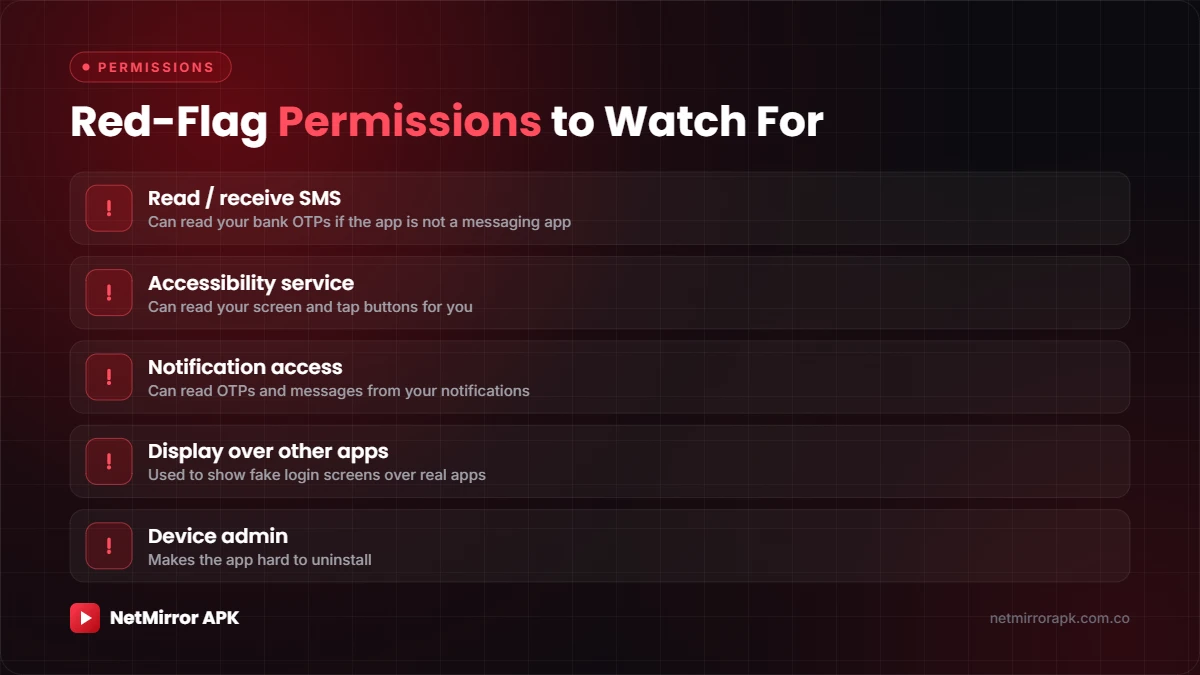
| Read / receive SMS | The app is not a messaging app. It can read your bank OTPs. |
| Accessibility service | The app isn’t built for disabled users. It can read your screen and tap buttons for you. |
| Notification access | The app can read OTPs and messages from your notifications. |
| Display over other apps | Used to show fake login screens on top of real apps. |
| Device admin | Makes the app hard to uninstall. |
| Contacts, call logs, camera, microphone | The app has no clear reason to use them. |
If an app insists on any of these to “work properly”, uninstall it.
Mod APKs and WhatsApp Scams
7. Skip “Mod”, “Cracked” and “Premium Unlocked” APKs
Modified APKs are changed by someone other than the original developer, and you have no way to know what else was added. Malware is often hidden inside “free premium” versions of popular games, music apps and video apps. If an offer sounds too good to be true, it usually comes with a hidden cost.
8. Never install APK files sent on WhatsApp, SMS or Telegram
Scammers send APK files disguised as wedding invitations, traffic challans, electricity bill notices, courier updates, bank KYC forms and job offers. Banks, government departments and delivery companies don’t send app files over chat. If someone you know forwards an APK, call them first — their account may be hacked. It also helps to turn off auto-download for documents in WhatsApp settings.
✅ Safe habits
- Install from the Play Store or the developer’s official site
- Scan every APK on VirusTotal first
- Keep Play Protect switched on
- Allow unknown apps for one app only
❌ Risky habits
- Installing APKs from WhatsApp forwards
- Using Mod or cracked versions
- Turning off Play Protect
- Giving SMS or Accessibility access to random apps
Warning Signs After Installing
9. Watch how the app behaves
Uninstall the app right away if you notice any of these:
- The app icon disappears from your home screen after the first launch.
- Full-screen ads appear even when the app is closed.
- Your browser opens random pages by itself.
- Battery or mobile data drains much faster than before.
- The app asks you to install another app, or to give Accessibility access, before it “unlocks”.
10. Never enter OTPs, PINs, passwords or card details
A video player, game or utility app has no reason to ask for your UPI PIN, debit card number, bank login or an OTP. The same goes for “human verification” pages that ask for your phone number, an OTP or another app install before you can continue. Close the app and uninstall it.
New in 2026: Android Developer Verification
Google is changing how sideloading works on certified Android phones. Apps will need to be registered by a verified developer before they can be installed. According to the Android Developers Blog:
| When | What happens |
|---|---|
| August 2026 | The “advanced flow” for installing unverified apps launches globally |
| 30 September 2026 | Enforcement starts in Brazil, Indonesia, Singapore and Thailand |
| 2027 onwards | Gradual global rollout |
Experienced users can still install apps from unverified developers through the advanced flow. It includes turning on developer mode, restarting the phone, a one-day waiting period and confirming with your fingerprint, face or PIN. Even then, Android shows a warning before each install.
Installed a Suspicious APK? Do This Now
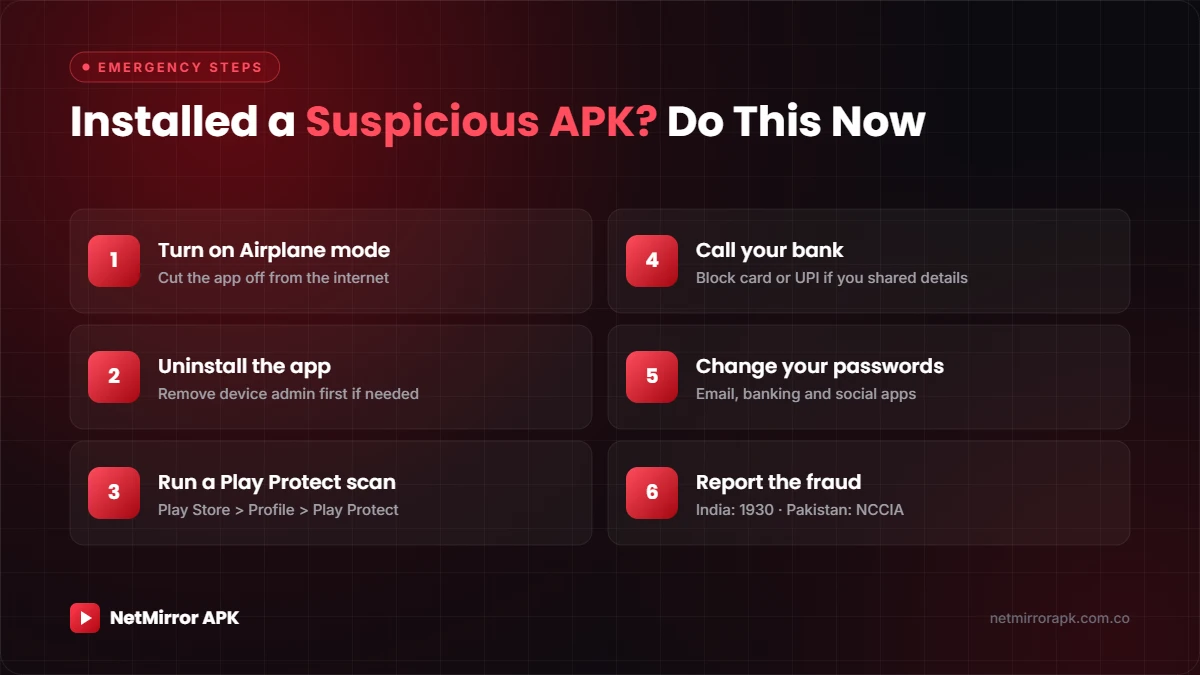
- Turn on Airplane mode: this cuts the app’s internet connection.
- Uninstall the app: go to Settings > Apps. If Uninstall is greyed out, search Settings for “Device admin apps”, turn the app off there, then uninstall.
- Run a Play Protect scan: open the Play Store > Profile > Play Protect > Scan.
- Call your bank: if you entered any card, UPI or banking details, ask them to block your card or UPI.
- Change your passwords: email, banking and social media — ideally from a different device.
- Report the fraud: in India, call 1930 or file a complaint at cybercrime.gov.in. In Pakistan, report it to the National Cyber Crime Investigation Agency (NCCIA).
- Factory reset if needed: if the phone still behaves strangely, back up your photos and contacts, then reset.
Frequently Asked Questions
Are all APK files dangerous?
No. An APK is just the file format Android apps use — Play Store apps are APKs too. The risk comes from where you get the file and who made it.
Is an app safe if VirusTotal shows zero detections?
Not always. New malware may not be detected yet. Use VirusTotal together with the other checks, especially permissions.
How do I know if an APK is the original version?
Download it only from the developer’s official website or a trusted store, and compare the app name, developer name and file size with what the official site lists.
Can I install APKs on Android TV or Fire TV safely?
The same rules apply. TV devices often have fewer security tools, so be even more careful about where the file comes from.
Does a factory reset remove malware?
In most cases, yes. Back up your photos and contacts first, and don’t reinstall the suspicious app afterwards.
Related Guides
Final Word
Most phone scams don’t break into your phone — they get you to install something. Take two minutes to run through this checklist and you’ll avoid almost all of them. When in doubt, don’t install.
One Comment