Want to watch on the big screen? NetMirror TV is the TV version of the NetMirror app, made for Android TV, Google TV and Fire TV devices. It has a remote-friendly layout, so you can browse movies and shows with your TV remote instead of a touch screen.
The NetMirror TV APK is not on the Google Play Store or Amazon Appstore, so it has to be sideloaded with the Downloader app. Below you will learn how to install it, what to do on Samsung and LG TVs, how to cast from your phone and how to fix common problems.
| App Name | NetMirror TV (Net Mirror TV APK) |
|---|---|
| Works On | Android TV, Google TV, Fire TV |
| Not Supported | Samsung (Tizen) and LG (webOS) app installs |
| Install Method | Sideload with the Downloader app |
| Play Store / Appstore | Not available |
| Version | Latest version varies |
| Price | Free, no subscription |
| Status | Unofficial service |
Install NetMirror on Android TV, Google TV and Fire TV Stick, or cast from your phone.
What Is Net Mirror TV APK?
NetMirror launched in 2023 as Netflix Mirror and lists titles from Netflix, Prime Video, JioHotstar and other platforms for free. Besides the phone APK and web version, there is a separate TV app, also called “Net Mirror TV”.
NetMirror TV App vs Phone App
| Feature | NetMirror TV App | Phone App |
|---|---|---|
| Devices | Android TV, Google TV, Fire TV | Android phones and tablets |
| Navigation | TV remote (arrow keys) | Touch screen |
| Layout | Large rows for big screens | Mobile layout |
| How to install | Downloader app on the TV | APK file on the phone |
The phone APK may install on a TV, but its menus are often hard to use with a remote, so choose the TV version. Phone users can read our main NetMirror APK guide.
NetMirror for TV: Which Devices Are Supported?
Android-based TVs can install the APK. Samsung and LG need another way.
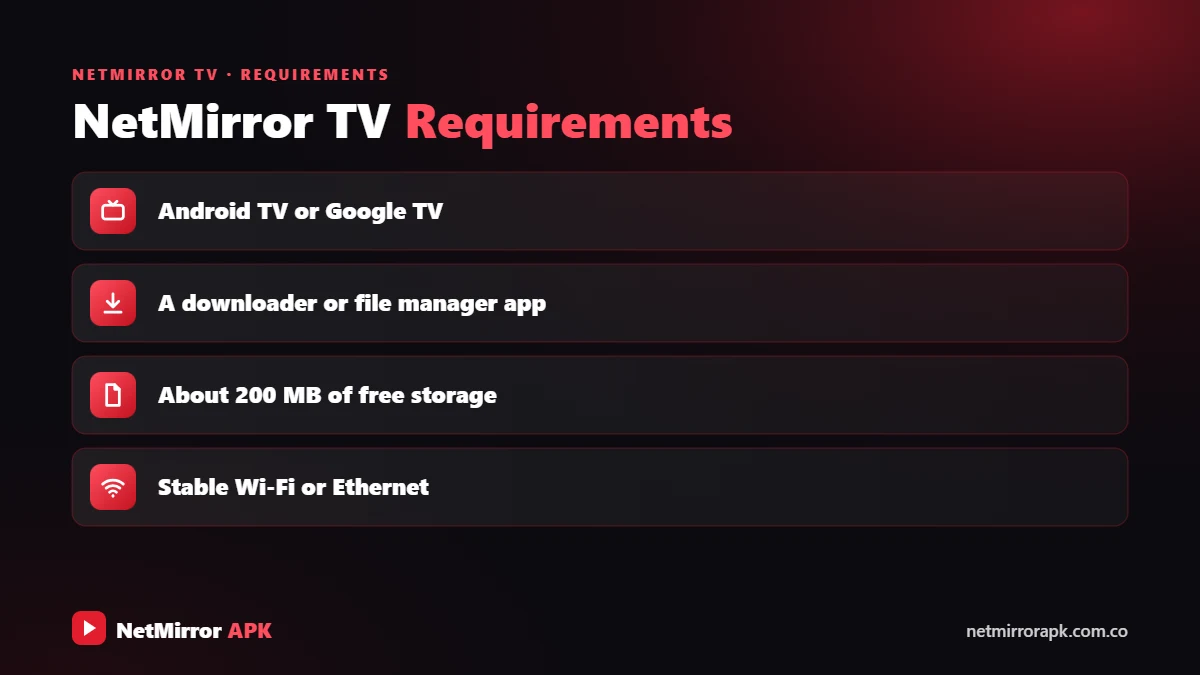
| Device | Can Install APK? | Best Method |
|---|---|---|
| Android TV / Google TV | Yes | Downloader app |
| Fire TV Stick / Fire TV (Fire OS) | Yes | Downloader app |
| Android TV box / Chromecast with Google TV | Yes | Downloader app |
| Samsung Smart TV (Tizen) | No | Browser, casting or a streaming stick |
| LG Smart TV (webOS) | No | Browser, casting or a streaming stick |
Not sure what your TV runs? Open Settings > About (or Device Preferences > About). If you see Android TV OS or Google TV, the APK method will work. Some newer Fire TV devices run Amazon’s Vega OS instead of Fire OS and may not allow sideloading.
How to Install NetMirror for Android TV and Google TV
This method works on any Android TV, Google TV or Android TV box and takes about 10 minutes. Google’s Android TV help centre explains where the security and app settings are on your model.
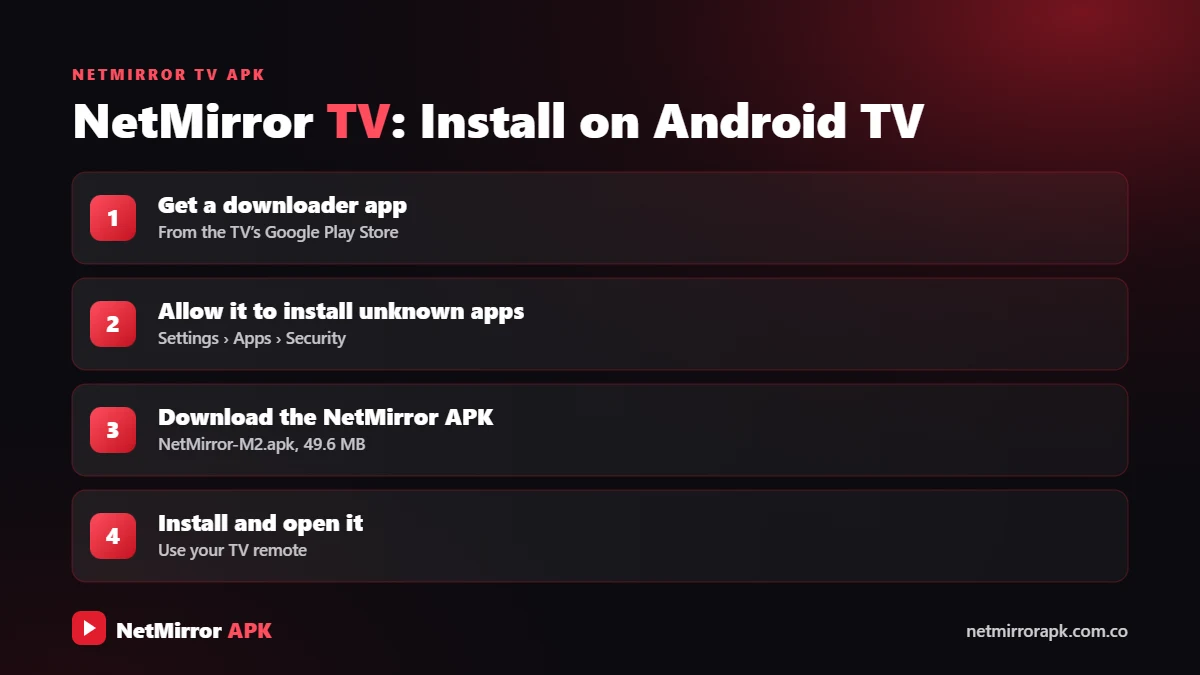
- Install Downloader: Open the Google Play Store on your TV, search for “Downloader” by AFTVnews and install it.
- Turn on Developer options if needed: On some Google TV devices, go to Settings > System > About and click Android TV OS build several times until developer mode turns on.
- Allow unknown apps for Downloader: Go to Settings > Apps (or Device Preferences) > Security & restrictions > Unknown sources and turn it on for Downloader only. Menu names vary by brand.
- Enter the download link: Open Downloader, allow storage access, type the download link of the NetMirror TV APK you trust in the URL box and select Go.
- Install the app: When the download finishes, select Install, then Open or Done.
- Turn unknown apps off again: Go back to the same setting and switch Downloader off for better security.
- Open NetMirror TV: Find it in your Apps row, open it and complete any login or verification step.
NetMirror APK for Android TV Latest Version
Version numbers change often, so we do not list one here. To update, install the latest TV APK you trust over the old app. If you see “App not installed”, uninstall the old version first and try again.
How to Install NetMirror on Firestick
Use the Downloader app to sideload the TV APK in six steps.
Home screen > Find > Search, type Downloader and install it.
Settings > My Fire TV > About, click your device name seven times.
Developer Options > Install unknown apps, then turn Downloader on.
Open Downloader and enter the download link of the TV APK.
Select Install, then Done, and delete the APK file to save space.
Hold the Home button, open Apps and move NetMirror to the front.
- Install Downloader: On the Fire TV home screen, go to Find > Search, type Downloader and install it.
- Become a developer: Go to Settings > My Fire TV > About and click your device name seven times until it says you are a developer.
- Allow Downloader: Open Settings > My Fire TV > Developer Options > Install unknown apps and turn on Downloader (older models show Apps from Unknown Sources).
- Download the TV APK: Open Downloader, enter the download link of the TV APK you trust and select Go.
- Install and clean up: Select Install, then Done, and choose Delete to remove the APK file and save space.
- Add it to your home screen: Hold the Home button, open Apps, highlight NetMirror, press the Menu button and choose Move.
NetMirror for Smart TV: Samsung and LG
Samsung TVs run Tizen and LG TVs run webOS. Neither can install APK files, so there is no NetMirror app in their stores. You still have three options.
How to Install NetMirror on Samsung Smart TV
- TV browser: Open Samsung Internet on the TV and visit the NetMirror web version. It can be slow, and some players may not load.
- Cast from your phone: Use Smart View or screen mirroring from your Android phone.
- Add a streaming stick: Plug in a Fire TV Stick or Android TV box and follow the steps above.
How to Install NetMirror in LG TV
The options are the same: use LG’s built-in Web Browser, mirror your phone with Screen Share, or connect a Fire TV Stick or Android TV box to an HDMI port. Many newer Samsung and LG models also support AirPlay for iPhone users. For the browser version, see our NetMirror Online guide.
How to Cast NetMirror to TV from Your Phone
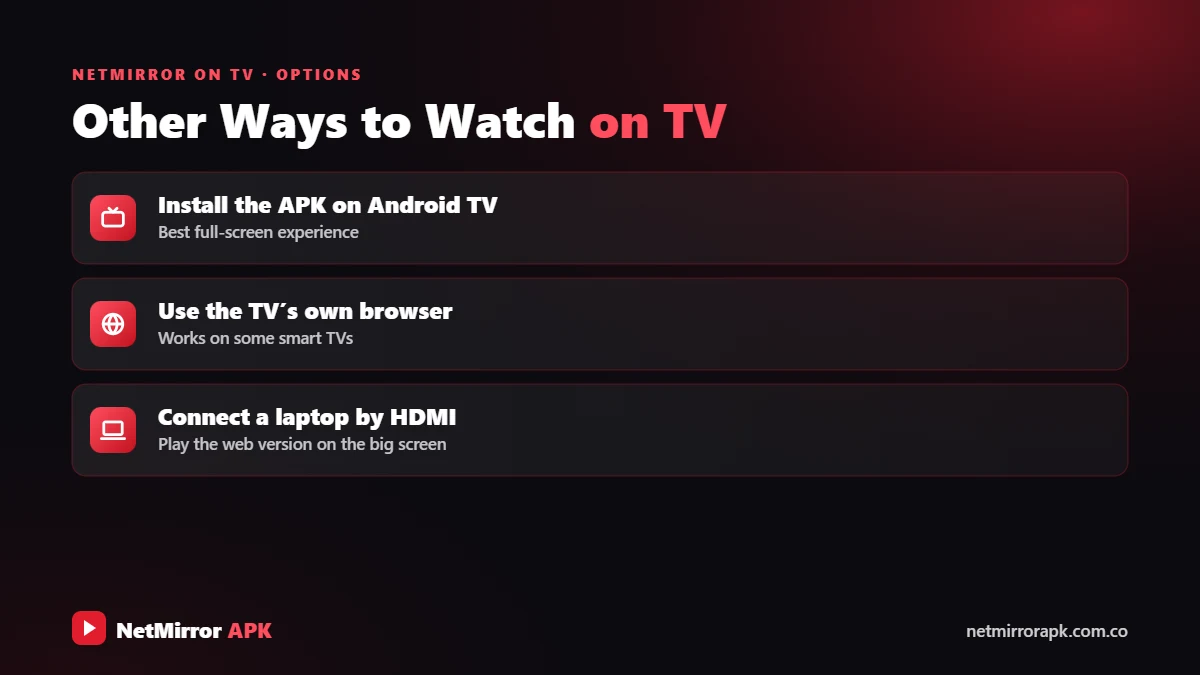
- Chromecast / Google TV: If the player shows a Cast icon, tap it and pick your TV. If not, open Android Quick Settings and use Screen Cast or Smart View to mirror the screen.
- iPhone: Open Control Center, tap Screen Mirroring and select an AirPlay-compatible TV. See our NetMirror for iOS guide.
- Laptop: In Chrome, open the menu and choose Cast to send the tab to your TV. See NetMirror for PC.
Remote-Control Tips for NetMirror TV
- Use the arrow keys (D-pad) to move between rows and OK to select.
- Use voice search if available, or the Google TV or Fire TV phone app as a keyboard.
- Press Back to leave the player and return to the title page.
- If menus do not respond to the remote, you may have installed the phone APK. Install the TV version instead.
New to the app? Our how to use NetMirror guide explains search, audio and quality settings.
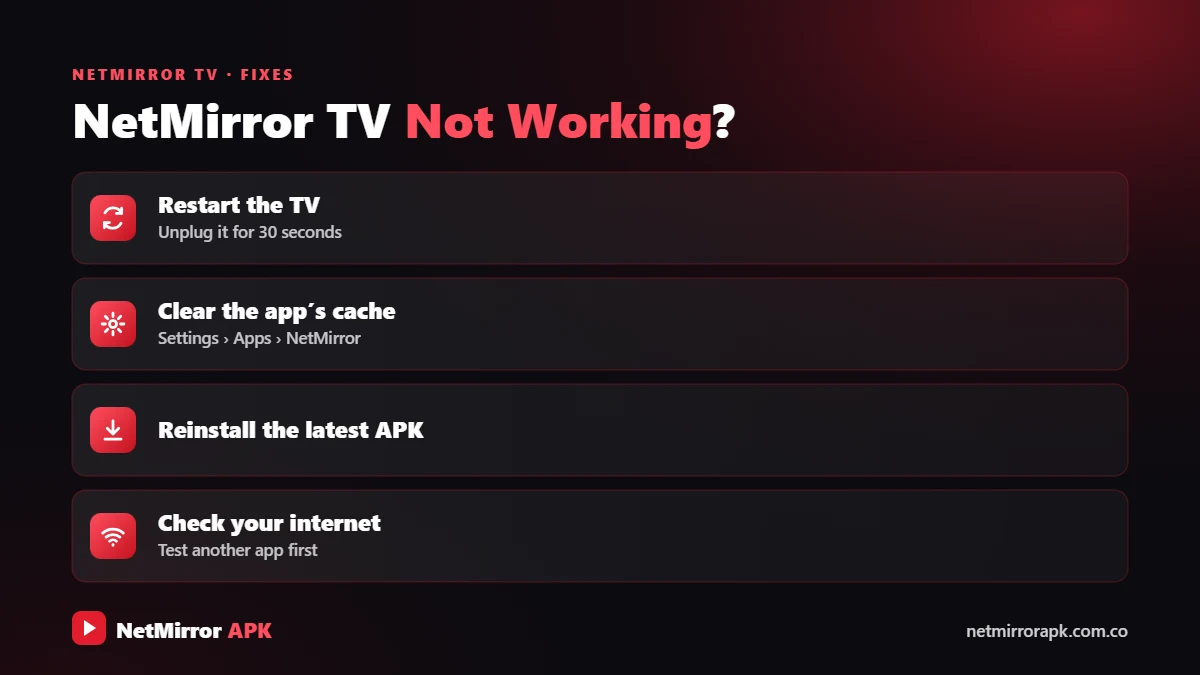
NetMirror TV Not Working? Fixes
Not Enough Storage
TV sticks have little storage. Delete old APK files from Downloader and uninstall apps you do not use.
Clear Cache and Data
Go to Settings > Apps > NetMirror (on Fire TV: Settings > Applications > Manage Installed Applications) and select Clear cache. If it still crashes, choose Clear data, which resets the app and logs you out.
Update or Reinstall
Old versions often stop working, so install the latest TV APK you trust. If installation fails or shows a parse error, uninstall the old app, download the file again and retry.
Network and Playback
Restart the TV and router and lower the video quality. If the service is down, try later. More fixes are in our NetMirror not working guide.
Is NetMirror Safe for Android TV?
Sideloading carries some risk, so turn off unknown apps after installing, keep Google Play Protect on and avoid modded APKs. NetMirror itself is unofficial and streams without licences. In India, knowingly infringing copyright under the Copyright Act, 1957 can lead to fines and jail. Read our Is NetMirror safe? guide.
Most smart TVs already have official apps such as Netflix, Prime Video, JioHotstar, ZEE5, SonyLIV and YouTube, which are safe and legal. See also our NetMirror alternatives.
NetMirror TV: Final Words
NetMirror TV is easiest on Android TV, Google TV and Fire TV, where you can install the TV APK with Downloader in a few minutes. Samsung and LG owners can use the browser, casting or a streaming stick. Use only a link you trust and, for worry-free viewing, choose official streaming apps.
Frequently Asked Questions
How to download NetMirror in TV?
On Android TV, Google TV or Fire TV, install the Downloader app, allow it to install unknown apps, enter the download link of the TV APK you trust and install it. Samsung and LG TVs cannot install APKs.
How to install NetMirror on Firestick?
Install Downloader, turn on developer mode in Settings, My Fire TV, About, allow Downloader under Install unknown apps, then download and install the TV APK.
How to install NetMirror on Samsung Smart TV?
Samsung Tizen TVs cannot install APKs. Use the Samsung Internet browser, mirror your phone with Smart View, or connect a Fire TV Stick or Android TV box.
How to install NetMirror in LG TV?
LG webOS TVs do not support APK files. Use the LG Web Browser, Screen Share from your phone, or plug in a Fire TV Stick or Android TV box.
How to cast NetMirror to TV?
Connect your phone and TV to the same Wi-Fi, then tap the Cast icon in the player or use screen mirroring (Screen Cast, Smart View or AirPlay) to show your phone screen on the TV.
Does NetMirror work on TV?
Yes, the TV APK works on Android TV, Google TV and Fire OS devices. On other smart TVs you can use the browser or cast from your phone, but results vary.
Is NetMirror safe for Android TV?
The app is unofficial, so there is some risk. Install only a file you trust, turn off unknown apps afterwards, keep Play Protect on, and never enter payment details in the app.
Which is the NetMirror TV APK latest version?
The version number changes often, so check the source you trust for the newest TV APK and install it over your current app.
Related NetMirror Guides
Disclaimer: netmirrorapk.com.co is an independent information website. We are not affiliated with NetMirror, Netflix, Amazon Prime Video, JioHotstar or any other brand mentioned. We do not host, upload or stream any movies or shows; the only file we host is the NetMirror APK on our NetMirror download page. All trademarks belong to their owners. Please respect copyright and use official platforms wherever possible.