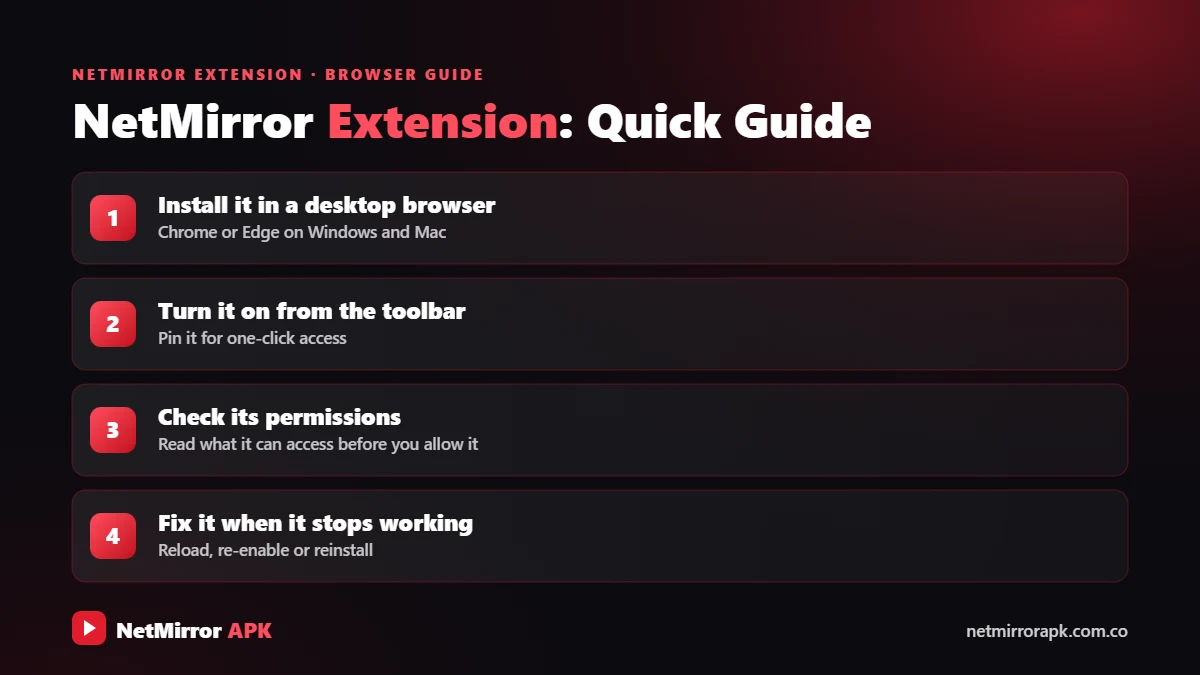
The NetMirror extension is a small browser add-on that helps the NetMirror web player load videos in desktop browsers like Chrome and Firefox. If you open NetMirror on a laptop and the player stays black or keeps spinning, this extension is often the missing piece. In this guide you will learn what it does, how to install it safely, how to switch it on and off, and what to do if videos still do not play.
NetMirror (also called “Net Mirror”) is an unofficial streaming service, so use any tool linked to it with care and keep official platforms as your safe option.
Add the extension to Chrome, Edge, Brave or Firefox to fix web player loading.
What Is the NetMirror Extension?
“Netmirror Extension” is a real extension listed on the Chrome Web Store and on Firefox Add-ons. It works on the HTTP request headers your browser sends. Headers are small labels attached to every request, telling a website things like which page the request came from.
| Name | Netmirror Extension |
|---|---|
| Where to get it | Chrome Web Store, Firefox Add-ons |
| Works on | Chrome, Edge, Brave (Chrome store); Firefox |
| What it does | Adds, changes or removes request headers (Firefox: changes the Referer header for supported media requests) |
| Default state | Firefox: header change is off until you switch it on in the popup |
| Price | Free |
Why Does the NetMirror Web Player Need It?
Some video servers only send media when a request looks like it comes from a supported page. That information travels in the “Referer” header. According to its Firefox listing, the extension changes this header for supported media requests, so supported NetMirror pages can load compatible video in a desktop browser. Without it, you may see a black player or an endless loading circle.
How to Install NetMirror Extension for Chrome
The same steps work in Chrome, Microsoft Edge and Brave.
Go to the official Chrome Web Store in your browser.
Type Netmirror Extension in the store search box.
Look at the name, publisher, user count and reviews first.
Click Add to Chrome, then confirm with Add extension.
Click the puzzle icon in the toolbar and pin the extension.
Switch the extension on from its popup and refresh the page.
These steps also work for Microsoft Edge and Brave, which can use the Chrome Web Store:
- Open the Chrome Web Store: In Chrome, Edge or Brave, go to the official Chrome Web Store.
- Search for the extension: Type “Netmirror Extension” in the store search box.
- Check the listing: Open the result and check the name, publisher, user count and reviews. At the time of writing the Chrome listing shows 500K+ users. Skip copies with very few users or strange names.
- Add it: Click “Add to Chrome” (or “Get”), then click “Add extension” in the pop-up. Edge may first ask you to allow extensions from other stores.
- Pin it: Click the puzzle-piece icon in the toolbar and pin Netmirror Extension so its icon is easy to reach.
- Open NetMirror web: Load the NetMirror web version, switch the extension on from its popup if needed, and refresh the page.
How to Install NetMirror Extension on Firefox
- Open Firefox Add-ons: Go to the official Firefox Add-ons site from the Firefox menu (Add-ons and themes).
- Search: Type “Netmirror Extension” and open the listing published by “Netmirror”.
- Check details: Look at the user count, last update and permissions before installing.
- Add to Firefox: Click “Add to Firefox”, then “Add” to confirm.
- Switch it on: Click the extension icon and turn on the header change in the popup, as it is off by default.
How to Turn the NetMirror Extension On or Off
Click the extension icon in your toolbar to open its popup. On Firefox, the header change is off by default and you switch it on there. After turning it on or off, refresh the NetMirror tab so the change takes effect.
NetMirror Extension Permissions and Privacy
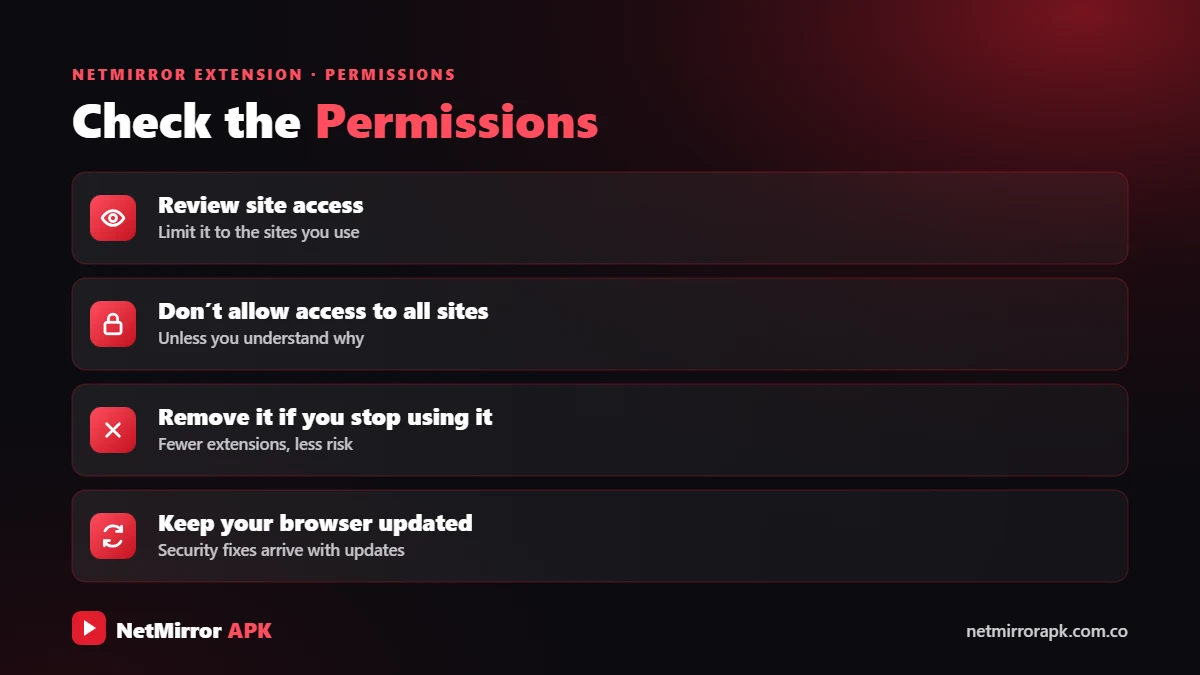
An extension that can change request headers has real power over how your browser talks to websites. In simple words: Google’s guide to installing and managing Chrome extensions shows where to review or remove an extension’s permissions.
- What it can do: Add, change or remove labels on web requests, which is how it helps the player load media.
- Developer’s claim: The Firefox listing says the extension collects no personal data. We cannot verify this independently.
- The risk: Fake copies with similar names could misuse the same permissions, for example to inject ads or track browsing.
- Safe habits: Install only the store-listed version, check the publisher and user count, keep it off when not needed, and remove it if it starts opening ads or changing your search engine.
NetMirror Extension Not Working? Try These Fixes
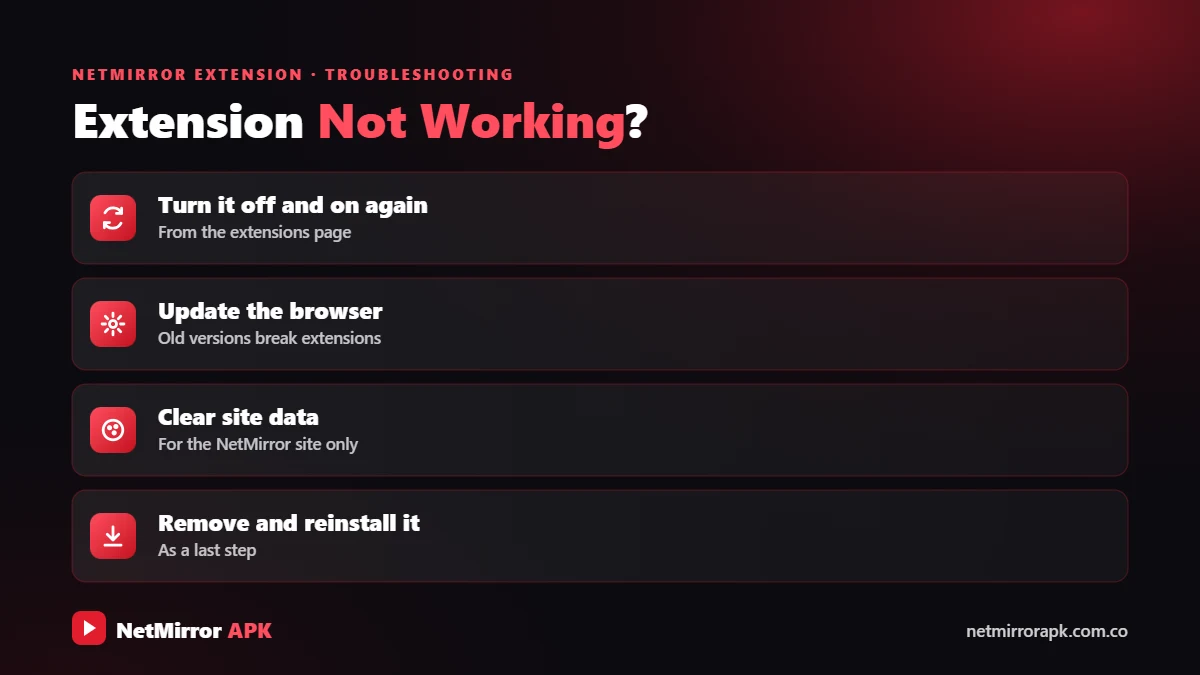
- Make sure it is on: Open the popup and confirm the header change is enabled.
- Refresh the page: Reload the NetMirror tab after switching it on.
- Update the browser and extension: Old versions may stop working with newer pages.
- Disable conflicting extensions: Other header or privacy extensions can clash. Turn them off one by one to test.
- Clear cache and cookies: Clear site data for the NetMirror tab and log in again.
- Check the service itself: If NetMirror is down or the address has changed, no extension will fix it. See NetMirror not working.
Net Mirror Extension vs App vs Web
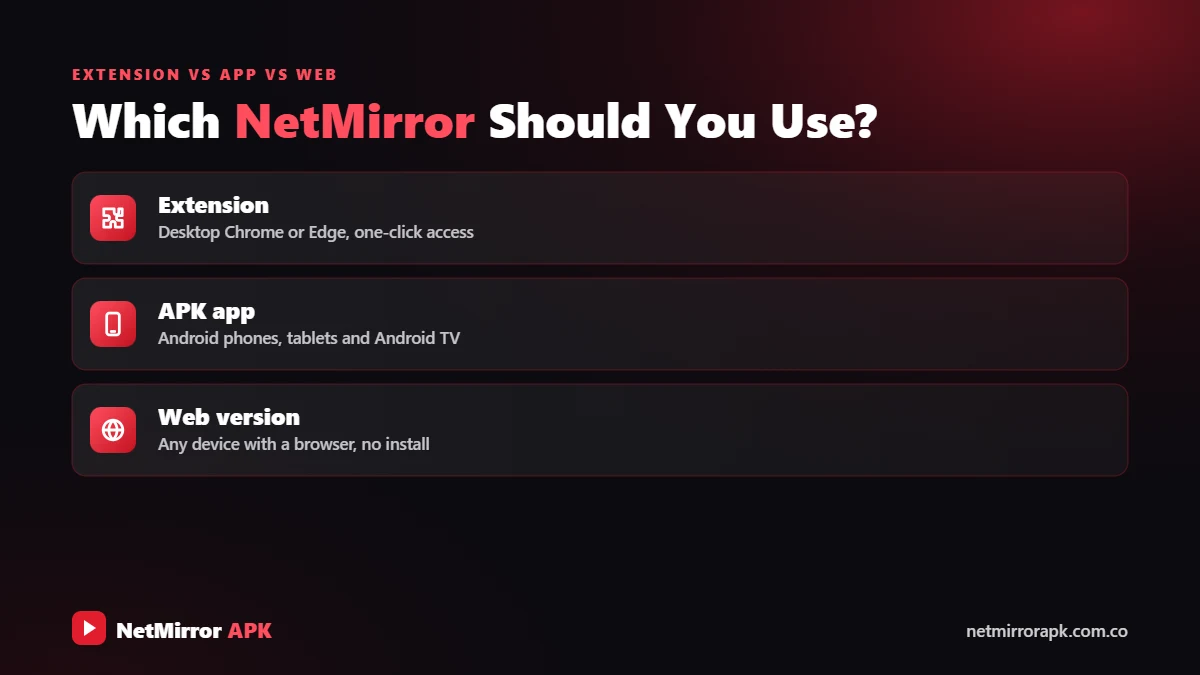
| Option | Best for | Notes |
|---|---|---|
| 🧩 Extension + web | Desktop Chrome, Edge, Brave, Firefox | Helps the web player load media; keep it off when not in use |
| 🌐 Web only | iPhone, iPad, quick use on any browser | No install; may face login and verification steps |
| 📱 Android app | Android phones and Android TV | APK sideload; on PC needs an emulator (PC guide) |
Frequently Asked Questions
Is the NetMirror extension safe?
The store-listed version is reasonably safe if you check the publisher and user count, and the Firefox developer says it collects no personal data. Because it can modify request headers, avoid look-alike copies, keep it off when not needed, and remember NetMirror itself is an unofficial service.
Is the NetMirror extension free?
Yes. The Netmirror Extension is free on the Chrome Web Store and Firefox Add-ons. Any site asking you to pay for it is not the real listing.
Does the NetMirror extension work on mobile Chrome?
No. Chrome for Android does not support extensions. Firefox for Android does support add-ons, so check whether the listing shows Android support. On phones, the NetMirror app or web version is usually easier.
Why is the NetMirror extension not working?
Usually it is switched off, the page was not refreshed, the browser or extension is outdated, another extension is clashing, or NetMirror itself is down. Turn it on, refresh, update, and disable other header tools to test.
Final Words on the NetMirror Extension
The NetMirror extension is a simple helper that changes request headers so the NetMirror web player can load video in desktop browsers. Install it only from the official Chrome Web Store or Firefox Add-ons listing, switch it on only while watching, and remove it if it behaves strangely. For a risk-free experience, official services like Netflix, Prime Video, JioHotstar or the free Amazon MX Player remain the best choice.
Related NetMirror Guides
Disclaimer: netmirrorapk.com.co is an independent information website. We are not affiliated with NetMirror, Netflix, Amazon Prime Video, JioHotstar or any other brand mentioned. We do not host, upload or stream any movies or shows; the only file we host is the NetMirror APK on our NetMirror download page. All trademarks belong to their owners. Please respect copyright and use official platforms wherever possible.